
Building an NVIDIA GPU Controller (4) — Custom Resolutions and Display Timing Calculations

·3117 words·15 mins· loading · loading ·
Author
Plus
NVIDIA GPU Controller Dev Log 2026 - This article is part of a series.
Part 4: This Article

Previous parts of this series covered NVAPI initialization, GPU information queries, and EDID reading and writing. This part tackles the project’s core feature: custom resolutions. Rather than simply calling NVAPI functions, the goal is to calculate and apply display timing directly — the language that monitors actually understand.

What Is Display Timing
#

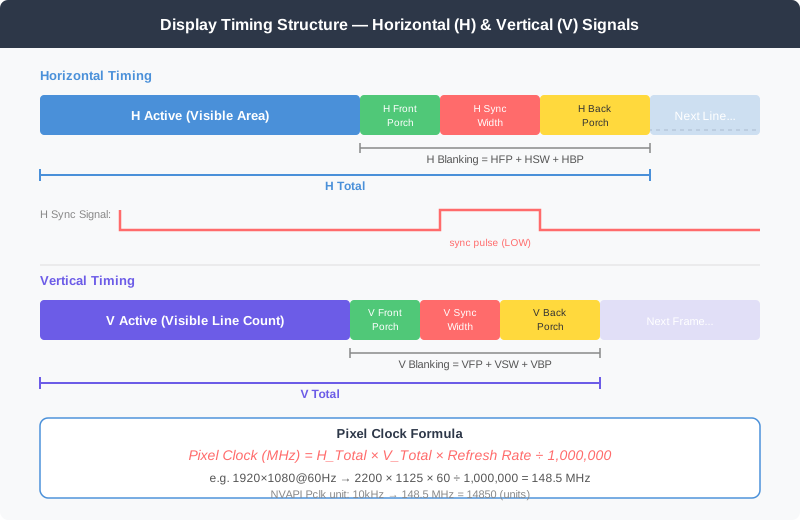
When a monitor and GPU exchange pixel data, they don’t just pass around resolution numbers. The analog signal conventions from the CRT era carried over into the digital world, so beyond the visible pixels that make up the image, there are defined blanking intervals on all sides.

Display Timing Structure

Horizontal Timing
#

The time structure for transmitting a single line:

Interval Purpose
H Active Pixels actually shown on screen (e.g., 1920)
H Front Porch (HFP) Gap between the end of active pixels and the sync pulse
H Sync Width (HSW) The sync pulse itself — the monitor uses this to detect line start
H Back Porch (HBP) Gap after the sync pulse before the next active region begins
H Total Sum of all four intervals (e.g., 2200)

Vertical Timing
#

The per-frame structure follows the same pattern as horizontal:

Interval Purpose
V Active Actual number of visible lines (e.g., 1080)
V Front Porch (VFP) Vertical front porch
V Sync Width (VSW) Vertical sync pulse
V Back Porch (VBP) Vertical back porch
V Total Sum (e.g., 1125)

Pixel Clock Formula
#

The pixel clock, which all timing is derived from, is determined by:

1
Pixel Clock (MHz) = H_Total × V_Total × Refresh Rate ÷ 1,000,000

The actual pixel clock for 1920×1080@60Hz:

1
2200 × 1125 × 60 ÷ 1,000,000 = 148.5 MHz

NVAPI expresses this value in units of 10 kHz. 148.5 MHz becomes 14850. The NvTiming.Pclk field uses this unit.

 1
 2
 3
 4
 5
 6
 7
 8
 9
10
11
12
13
14
15
16
17
18
19
20
21
22
23
24
25
26
27
28
29
30
[StructLayout(LayoutKind.Sequential)]
public struct NvTiming
{
    public ushort HVisible;      // H Active pixel count
    public ushort HBorder;
    public ushort HFrontPorch;
    public ushort HSyncWidth;
    public ushort HTotal;
    public byte HSyncPol;        // 1 = Positive, 0 = Negative

    public ushort VVisible;      // V Active line count
    public ushort VBorder;
    public ushort VFrontPorch;
    public ushort VSyncWidth;
    public ushort VTotal;
    public byte VSyncPol;

    public ushort Interlaced;
    public uint Pclk;            // Pixel clock (10 kHz units)
    public NvTimingExt Etc;

    public double RefreshRate
    {
        get
        {
            if (HTotal == 0 || VTotal == 0) return 0;
            return (Pclk * 10000.0) / (HTotal * VTotal);
        }
    }
}

The RefreshRate property back-calculates the actual refresh rate. Pclk × 10000 gives the pixel clock in Hz, and dividing by HTotal × VTotal yields the frame rate.


CVT v1.2 Algorithm
#

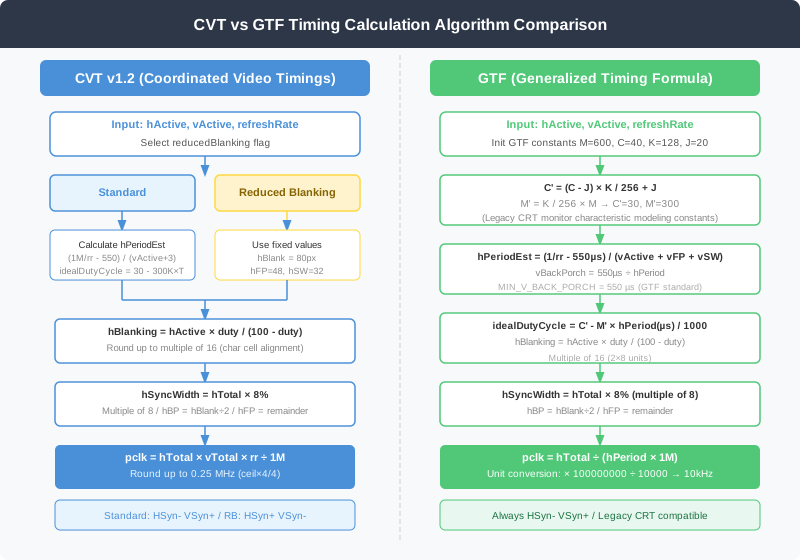
CVT (Coordinated Video Timings) is the timing calculation standard published by VESA. Designed for the LCD era, it comes in two variants: Standard and Reduced Blanking.

CVT vs GTF Algorithm Comparison

CVT Standard Blanking
#

This is the TimingCalculator.CalculateCVT() method with reducedBlanking = false:

 1
 2
 3
 4
 5
 6
 7
 8
 9
10
11
12
13
14
15
16
17
18
19
20
21
22
23
24
25
26
27
28
29
30
public static NvTiming CalculateCVT(int hActive, int vActive, double refreshRate,
    bool reducedBlanking = false)
{
    // CVT Standard Blanking
    double hPeriodEstimate = ((1000000.0 / refreshRate) - 550.0) / (vActive + 3);
    int vSyncWidth = GetVSyncWidth(hActive, vActive);
    int vFrontPorch = 3;
    int vBackPorch = (int)Math.Floor(550.0 / hPeriodEstimate) + 1;
    if (vBackPorch < 6) vBackPorch = 6;
    int vBlanking = vFrontPorch + vSyncWidth + vBackPorch;
    int vTotal = vActive + vBlanking;

    int idealDutyCycle = (int)(30.0 - (300000.0 * hPeriodEstimate / 1000000.0));
    if (idealDutyCycle < 20) idealDutyCycle = 20;

    int hBlanking = (int)(hActive * idealDutyCycle / (100.0 - idealDutyCycle));
    hBlanking = ((hBlanking / 16) + 1) * 16; // Round up to multiple of 16 (character cell)
    int hTotal = hActive + hBlanking;

    double pclk = (double)hTotal * vTotal * refreshRate / 1000000.0;
    pclk = Math.Ceiling(pclk * 4) / 4; // Round up to 0.25 MHz

    int hSyncWidth = (int)(hTotal * 0.08);
    hSyncWidth = ((hSyncWidth / 8) + 1) * 8; // Round up to multiple of 8
    int hBackPorch = hBlanking / 2;
    int hFrontPorch = hBlanking - hSyncWidth - hBackPorch;

    timing.HSyncPol = 0; // Negative
    timing.VSyncPol = 1; // Positive
    timing.Pclk = (uint)(pclk * 100); // 10 kHz units

Key formulas:

Horizontal period estimate:

1
hPeriodEstimate = (1,000,000 / rr - 550) / (vActive + 3)   [unit: µs]

550 µs is the estimated vertical blanking time.

Ideal horizontal blanking ratio (duty cycle):

1
idealDutyCycle = 30 - (300,000 × hPeriod / 1,000,000)   [unit: %]

Minimum is 20%. This formula captures the characteristic that higher resolutions (shorter periods) require a lower blanking ratio.

hBlanking calculation:

1
2
hBlanking = hActive × duty / (100 - duty)
→ Round up to nearest multiple of 16 (character cell alignment)

Sync width and porches:

1
2
3
hSyncWidth = hTotal × 8%  → nearest multiple of 8
hBackPorch = hBlanking ÷ 2
hFrontPorch = hBlanking - hSyncWidth - hBackPorch

CVT Reduced Blanking
#

This variant minimizes blanking on LCD monitors to conserve bandwidth. It is particularly well-suited for high-refresh-rate custom resolutions:

 1
 2
 3
 4
 5
 6
 7
 8
 9
10
11
12
13
14
15
16
17
if (reducedBlanking)
{
    // Horizontal blanking is fixed
    int hBlank = 80;
    int hFrontPorch = 48;
    int hSyncWidth = 32;

    int vMinPorch = 3;
    int vSyncWidth = GetVSyncWidth(hActive, vActive);
    int vFrontPorch = vMinPorch;

    double hPeriod = (1000000.0 / refreshRate - 460.0) / (vActive + vFrontPorch + vSyncWidth);
    int vBackPorch = (int)Math.Round(460.0 / hPeriod);
    if (vBackPorch < 6) vBackPorch = 6;

    timing.HSyncPol = 1; // Positive (opposite of Standard!)
    timing.VSyncPol = 0; // Negative

Key characteristics of Reduced Blanking:

  • hBlank = 80 pixels fixed (Standard uses several hundred)
  • hFP=48, hSW=32 fixed
  • Sync polarity is the opposite of Standard (HSyn+, VSyn-)
  • Lower pixel clock conserves HDMI/DP bandwidth

V Sync Width by Aspect Ratio
#

GetVSyncWidth determines the vertical sync width based on the aspect ratio, following the VESA specification:

 1
 2
 3
 4
 5
 6
 7
 8
 9
10
11
private static int GetVSyncWidth(int hActive, int vActive)
{
    double ratio = (double)hActive / vActive;
    if (Math.Abs(ratio - 4.0 / 3.0) < 0.1) return 4;   // 4:3
    if (Math.Abs(ratio - 16.0 / 9.0) < 0.1) return 5;  // 16:9
    if (Math.Abs(ratio - 16.0 / 10.0) < 0.1) return 6; // 16:10
    if (Math.Abs(ratio - 5.0 / 4.0) < 0.1) return 7;   // 5:4
    if (Math.Abs(ratio - 15.0 / 9.0) < 0.1) return 7;  // 15:9
    if (Math.Abs(ratio - 21.0 / 9.0) < 0.1) return 5;  // 21:9
    return 5; // default
}

GTF Algorithm
#

GTF (Generalized Timing Formula) is the older VESA standard that predates CVT. It mathematically models the physical characteristics of CRT monitors and is used when compatibility with legacy displays is needed.

 1
 2
 3
 4
 5
 6
 7
 8
 9
10
11
12
13
14
public static NvTiming CalculateGTF(int hActive, int vActive, double refreshRate)
{
    // GTF constants (fixed VESA specification values)
    const double MIN_PORCH = 1;
    const double V_SYNC_RQD = 3;
    const double H_SYNC_PCT = 8.0;
    const double MIN_V_BACK_PORCH = 550.0; // µs
    const double M = 600.0;
    const double C = 40.0;
    const double K = 128.0;
    const double J = 20.0;

    double CPrime = ((C - J) * K / 256.0) + J;   // = 30.0
    double MPrime = K / 256.0 * M;                // = 300.0

The core of GTF lies in the C’ and M’ constants. These are empirically derived values that model the retrace speed of a CRT electron beam.

Vertical blanking calculation:

1
2
hPeriodEstimate = (1/rr - 550µs) / (vActive + vFP + vSW)
vBackPorch = 550µs ÷ hPeriod

Horizontal duty cycle:

1
2
idealDutyCycle = C' - M' × hPeriod(µs) / 1000
               = 30 - 300 × hPeriod / 1000

While the GTF and CVT Standard formulas look similar, their calculation paths differ. GTF first computes hPeriod precisely and then back-calculates the pixel clock, whereas CVT estimates the ideal pclk upfront.

1
2
3
4
5
    // GTF: back-calculate pclk from hPeriod
    double pclk = (double)hTotal / (hPeriodEstimate * 1000000.0) / 1000000.0;

    // Convert to 10 kHz units
    timing.Pclk = (uint)(pclk * 100000000.0 / 10000.0);

GTF always uses HSyn-, VSyn+ polarity.


Manual Timing
#

When the user wants to fine-tune CVT/GTF results or enter timing values directly from a monitor datasheet, manual mode is available:

 1
 2
 3
 4
 5
 6
 7
 8
 9
10
11
12
13
14
15
public static NvTiming CreateManualTiming(
    int hActive, int hFrontPorch, int hSyncWidth, int hTotal,
    int vActive, int vFrontPorch, int vSyncWidth, int vTotal,
    double pixelClockMHz, bool hSyncPositive, bool vSyncPositive)
{
    var timing = NvTiming.Create();
    timing.HVisible = (ushort)hActive;
    timing.HFrontPorch = (ushort)hFrontPorch;
    timing.HSyncWidth = (ushort)hSyncWidth;
    timing.HTotal = (ushort)hTotal;
    timing.HSyncPol = (byte)(hSyncPositive ? 1 : 0);
    // ... same for vertical
    timing.Pclk = (uint)(pixelClockMHz * 100); // 10 kHz units
    return timing;
}

In the UI’s Custom ResolutionPanel, when cboTimingMode is set to “Manual”, the user enters each value directly into numHFP, numHSW, numHTotal, numVFP, numVSW, numVTotal, and numPixelClock.


The NvCustomDisplay Structure
#

Calculated timing must be packaged into the NvCustomDisplay structure before it can be passed to NVAPI:

 1
 2
 3
 4
 5
 6
 7
 8
 9
10
11
12
13
14
15
16
17
18
19
20
21
22
23
24
25
[StructLayout(LayoutKind.Sequential)]
public struct NvCustomDisplay
{
    public uint Version;
    public uint Width;           // Resolution width
    public uint Height;          // Resolution height
    public uint Depth;           // Color depth (typically 32)
    public uint ColorFormat;     // Color format
    public NvViewportF SourcePartition; // Source partition (usually full: 0,0,1,1)
    public float XRatio;         // Scale ratio (usually 1.0)
    public float YRatio;
    public NvTiming Timing;      // Timing parameters
    public uint HwModeSetOnly;   // 0: persistent, 1: hardware mode only

    public static NvCustomDisplay Create()
    {
        var cd = new NvCustomDisplay();
        cd.Version = (uint)(Marshal.SizeOf(typeof(NvCustomDisplay)) | (1 << 16));
        cd.Timing = NvTiming.Create();
        cd.SourcePartition = new NvViewportF { X = 0, Y = 0, W = 1.0f, H = 1.0f };
        cd.XRatio = 1.0f;
        cd.YRatio = 1.0f;
        return cd;
    }
}

The Version field follows a common NVAPI pattern where the structure size and version number are combined via a bitwise OR. When HwModeSetOnly = 0, the mode is registered with the Windows Display Driver Model (WDDM) and persists across reboots. Setting it to 1 only changes the hardware registers — faster, but the setting is lost on reboot.


TryCustomDisplay vs SaveCustomDisplay
#

Applying a custom resolution is a two-step process.

Step 1: TryCustomDisplay — Temporary Apply
#

 1
 2
 3
 4
 5
 6
 7
 8
 9
10
11
12
13
14
15
16
17
18
19
20
21
22
23
public static NvStatus TryCustomResolution(uint displayId,
    uint width, uint height, uint depth, uint colorFormat, NvTiming timing)
{
    // Calculate refresh rate and store in NvTimingExt
    if (timing.HTotal > 0 && timing.VTotal > 0 && timing.Pclk > 0)
    {
        double hz = (timing.Pclk * 10000.0) / (timing.HTotal * timing.VTotal);
        timing.Etc.Rr = (ushort)Math.Round(hz);
        timing.Etc.Rrx1k = (uint)Math.Round(hz * 1000.0);
    }

    var cd = NvCustomDisplay.Create();
    cd.Width = width;
    cd.Height = height;
    cd.Depth = depth;
    cd.ColorFormat = colorFormat;
    cd.Timing = timing;
    cd.HwModeSetOnly = 0;

    var ids = new uint[] { displayId };
    var displays = new NvCustomDisplay[] { cd };

    var status = NvApiWrapper.DISP_TryCustomDisplay(ids, 1, displays);

TryCustomDisplay applies the resolution immediately but only holds it in NVAPI’s internal temporary state. When the driver restarts or RevertCustomDisplay is called, it reverts. The “Test (15s)” button in the UI follows this path.

NvTimingExt.Rr holds the refresh rate as an integer in Hz, while Rrx1k holds it in units of 0.001 Hz. Both fields must be populated for the driver to recognize the correct refresh rate.

Step 2: SaveCustomDisplay — Persist
#

 1
 2
 3
 4
 5
 6
 7
 8
 9
10
11
12
13
14
15
16
17
18
19
20
21
22
23
public static NvStatus SaveCustomResolution(uint displayId, NvDisplayHandle displayHandle)
{
    var ids = new uint[] { displayId };
    NvStatus status;

    // Attempt 1: displayId + (0,0)
    status = NvApiWrapper.DISP_SaveCustomDisplay(ids, 1, 0, 0);
    if (status == NvStatus.OK) { Logger.Info("Saved via displayId (0,0)"); return status; }

    // Attempt 2: displayId + (1,0)
    status = NvApiWrapper.DISP_SaveCustomDisplay(ids, 1, 1, 0);
    if (status == NvStatus.OK) { Logger.Info("Saved via displayId (1,0)"); return status; }

    // Attempts 3–4: retry with NvDisplayHandle
    if (displayHandle.IsValid)
    {
        var handles = new NvDisplayHandle[] { displayHandle };
        status = NvApiWrapper.DISP_SaveCustomDisplayByHandle(handles, 1, 0, 0);
        if (status == NvStatus.OK) return status;

        status = NvApiWrapper.DISP_SaveCustomDisplayByHandle(handles, 1, 1, 0);
        if (status == NvStatus.OK) return status;
    }

The third and fourth arguments to SaveCustomDisplay are flags whose exact meaning is not documented in the NVAPI reference. Experimentally, (0,0) and (1,0) combinations are tried in order, and both the DisplayId and DisplayHandle API overloads are attempted. Driver behavior varies between versions, which is why this fallback chain is necessary.

Saved custom resolutions survive driver restarts and become selectable in the Windows Display Settings app.


Revert Safety
#

If a custom resolution is incompatible with the monitor, the screen can go completely black. To handle this, the “Test” feature includes an auto-revert timer:

 1
 2
 3
 4
 5
 6
 7
 8
 9
10
11
12
13
14
15
// In BtnTest_Click:
revertCountdown = 15;
revertTimer.Start();
btnSave.Enabled = false;

private void RevertTimer_Tick(object sender, EventArgs e)
{
    revertCountdown--;
    lblStatus.Text = $"Testing... reverting in {revertCountdown}s";
    if (revertCountdown <= 0)
    {
        revertTimer.Stop();
        NvCustomDisplayManager.RevertCustomResolution(displayId);
    }
}

RevertCustomResolution uses a two-stage fallback strategy:

 1
 2
 3
 4
 5
 6
 7
 8
 9
10
11
12
13
14
15
16
17
18
19
public static NvStatus RevertCustomResolution(uint displayId)
{
    // Primary: NVAPI RevertCustomDisplay
    var ids = new uint[] { displayId };
    var status = NvApiWrapper.DISP_RevertCustomDisplay(ids, 1);
    if (status == NvStatus.OK)
    {
        Logger.Info("Custom display reverted via NVAPI");
        return status;
    }

    // Fallback: Windows ChangeDisplaySettingsEx
    Logger.Warn("NVAPI RevertCustomDisplay not available, using Windows API fallback");
    int result = ChangeDisplaySettingsExA(null, IntPtr.Zero, IntPtr.Zero, 0, IntPtr.Zero);
    if (result == 0) // DISP_CHANGE_SUCCESSFUL
    {
        Logger.Info("Display reverted via Windows API");
        return NvStatus.OK;
    }

If NVAPI DISP_RevertCustomDisplay fails, the code calls Win32 ChangeDisplaySettingsEx with a null device name and an empty DEVMODE to force the OS back to its default resolution. Even if the screen goes dark, the 15-second timer guarantees automatic recovery — the user never has to wait blindly.


Bandwidth Calculation
#

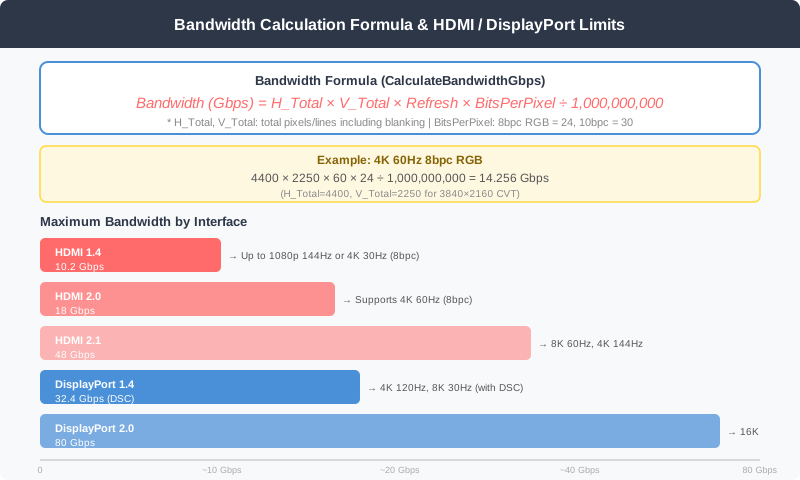
If a custom resolution exceeds the interface’s bandwidth limit, no image will be output. To validate upfront:

Bandwidth Calculation Formulas and Interface Limits

1
2
3
4
5
public static double CalculateBandwidthGbps(int hTotal, int vTotal,
    double refreshRate, int bitsPerPixel)
{
    return (double)hTotal * vTotal * refreshRate * bitsPerPixel / 1000000000.0;
}

Important: Use hTotal, vTotal (including blanking), not hActive, vActive. The interface maintains its clock throughout the blanking intervals as well.

Practical limits:

Interface Bandwidth Practical Limit
HDMI 1.4 10.2 Gbps 1080p 144Hz or 4K 30Hz (8bpc)
HDMI 2.0 18 Gbps 4K 60Hz (8bpc)
HDMI 2.1 48 Gbps 4K 144Hz, 8K 60Hz
DP 1.4 32.4 Gbps 4K 120Hz (higher with DSC)
DP 2.0 80 Gbps 16K-class

10bpc (HDR) requires 25% more bandwidth than 8bpc. Driving 4K 60Hz over HDMI 2.0 at 10bpc lands at 14.256 × (30/24) = 17.82 Gbps — close to the limit.


Timing Override Mode
#

NVAPI allows specifying the timing generation method via the NvTimingOverride enum:

 1
 2
 3
 4
 5
 6
 7
 8
 9
10
11
12
13
14
15
16
public enum NvTimingOverride : int
{
    Current  = 0,   // Keep current setting
    Auto     = 1,   // Driver auto-select
    EDID     = 2,   // Timings from monitor EDID
    DMT      = 3,   // VESA DMT standard timings
    DMTRb    = 4,   // DMT Reduced Blanking
    CVT      = 5,   // CVT Standard
    CVTRb    = 6,   // CVT Reduced Blanking
    GTF      = 7,   // GTF
    EIA861   = 8,   // CEA/EIA-861 (HDMI standard timings)
    AnalogTV = 9,   // Analog TV
    CEA861CVT = 10,
    AsiaTV   = 11,  // Asian TV standard
    Custom   = 255, // Fully manual timing
}

When applying a custom resolution, NvTimingOverride.Custom is used. In this mode, the driver does not calculate timings on its own — it passes the values from our NvTiming structure directly to the hardware.


Preset Management
#

Frequently used resolution configurations can be saved to and loaded from a CSV file:

1
2
3
4
private string _presetsPath = Path.Combine(
    AppDomain.CurrentDomain.BaseDirectory, "presets.csv");

private List<ResolutionPreset> _presets = new List<ResolutionPreset>();

ResolutionPreset bundles resolution, refresh rate, timing parameters, and pixel clock into a single record. These are displayed in the DataGridView on the right panel of the UI. Double-clicking a row automatically populates the input form on the left.

 1
 2
 3
 4
 5
 6
 7
 8
 9
10
11
12
13
private void DgvPresets_CellDoubleClick(object sender, DataGridViewCellEventArgs e)
{
    // Load selected preset into form
    var preset = GetSelectedPreset();
    if (preset == null) return;

    numWidth.Value = preset.Width;
    numHeight.Value = preset.Height;
    numRefresh.Value = (decimal)preset.RefreshRate;
    numPixelClock.Value = (decimal)preset.PixelClockMHz;
    numHFP.Value = preset.HFrontPorch;
    // ...
}

Converting to EDID DetailedTimingDescriptor
#

A calculated NvTiming can also be converted to EDID format, enabling integration with the EDID write feature covered in Part 3:

 1
 2
 3
 4
 5
 6
 7
 8
 9
10
11
12
13
14
15
16
17
18
19
20
public static DetailedTimingDescriptor ToDetailedTiming(NvTiming timing)
{
    int hBlanking = timing.HTotal - timing.HVisible;
    int vBlanking = timing.VTotal - timing.VVisible;

    return new DetailedTimingDescriptor
    {
        PixelClockKHz10 = (ushort)timing.Pclk,
        HActive = timing.HVisible,
        HBlanking = hBlanking,
        VActive = timing.VVisible,
        VBlanking = vBlanking,
        HFrontPorch = timing.HFrontPorch,
        HSyncWidth = timing.HSyncWidth,
        VFrontPorch = timing.VFrontPorch,
        VSyncWidth = timing.VSyncWidth,
        Features = (byte)((timing.HSyncPol != 0 ? 0x02 : 0)
                        | (timing.VSyncPol != 0 ? 0x04 : 0) | 0x18)
    };
}

The Features byte carries the sync polarity bits defined by the EDID specification. 0x18 is the base flag indicating a digital signal (separate sync).


The Full Workflow
#

  1. Select resolution, refresh rate, and timing mode in the UI
  2. Click Calculate → calls TimingCalculator.CalculateCVT() or CalculateGTF(), results appear in the form
  3. Click Test (15s) → calls TryCustomResolution(), auto-reverts after 15 seconds
  4. If the image looks good, click Save → calls SaveCustomResolution() (tries four fallback methods)
  5. If something goes wrong, click Restore Original → calls RevertCustomResolution() immediately

The key principle is the three-stage separation: apply → verify → save. This prevents accidentally persisting a timing that the monitor cannot display.


Closing Thoughts
#

Display timing is a complex world hiding behind the simple resolution numbers we see on screen. CVT and GTF are the crystallization of decades of display engineering knowledge, and NVAPI provides a direct window into that world at the driver level.

Part 5 will combine this custom resolution feature with color space control (Color Space, HDR), covering how to switch between SDR and HDR using the same NVAPI.
Series Index

NVIDIA GPU Controller Dev Log 2026 - This article is part of a series.
Part 4: This Article