Picture this: it’s Tuesday morning, your inbox is already overflowing, and before you can focus on anything strategic, you’re buried under a pile of quotes, contracts, and receipts. This isn’t just busywork — it’s a productivity black hole that devours the time you should be spending on innovation and core business problems.
What if you could reclaim that time by automating these tedious, repetitive tasks with smart technology? Over the past few years, the rise of Python, dramatic advances in Optical Character Recognition (OCR), and the emergence of LLM-based AI have created an unprecedented opportunity to turn complex paperwork from a burden into an efficient, automated process.
As an engineer with 13 years of experience, I’ve watched these tools transform real workflows firsthand. This guide covers practical, immediately applicable strategies for automating and streamlining paperwork — from hands-on coding examples to building powerful no-code pipelines. Discover the technical solutions that will help you and your team reclaim your time right now.
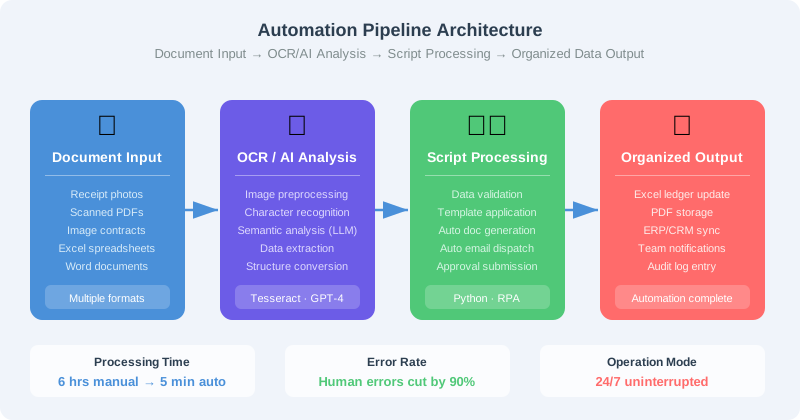
Why Paperwork Automation Matters Right Now #
Many workers report spending over 40% of their time on repetitive tasks like document creation, data entry, and information verification. If that number doesn’t hit home, consider this:
The concrete costs of manual processing:
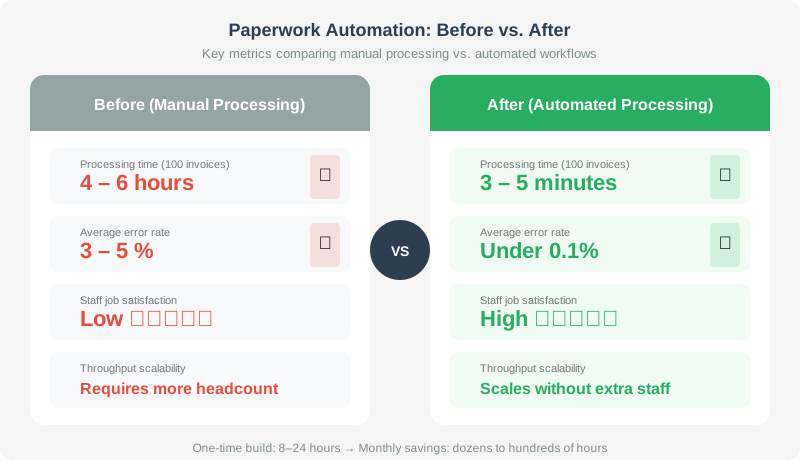
- Time waste: Processing 100 invoices by hand takes 4–6 hours on average. Automated, it’s done in under 5 minutes.
- Human error: The more repetitive the task, the more mistakes creep in. A single mistyped amount triggers a client dispute. A wrong contract date becomes a legal headache.
- Scalability ceiling: Even if your team doubles, manual workflows don’t scale linearly — people become the bottleneck.
- Audit trail gaps: Tracking who processed what document and when is a nightmare when everything is done manually.
Automation addresses all of these simultaneously. Yes, the initial setup takes time — but once a pipeline is built, it runs error-free, 24/7.
Understanding the Core Technology Stack #
Successful business automation starts with using the right tools for the right job. Rather than chasing the latest AI solution, the smart move is to accurately assess the characteristics of your documents (structured data vs. free-form text) and choose accordingly. The core stack for paperwork automation breaks down into three main pillars.
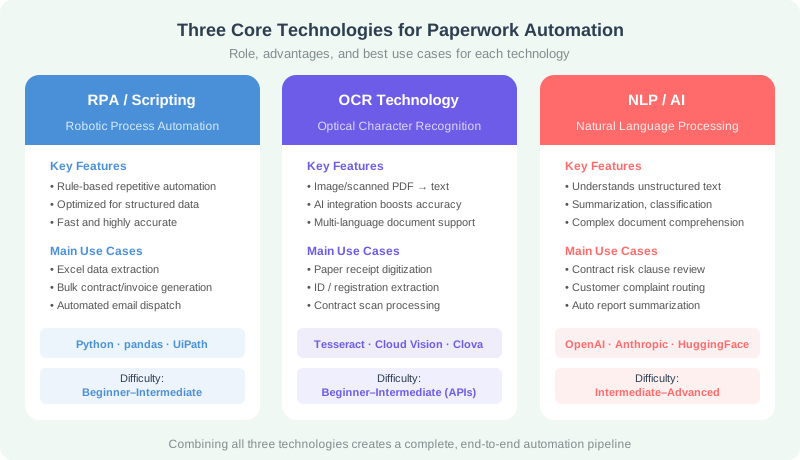
| Technology | Key Characteristics | Main Use Cases | Recommended Tools |
|---|---|---|---|
| RPA / Scripting | Rule-based repetitive data movement and document generation. Offers speed and accuracy for structured data. | Excel extraction, bulk report and contract generation, automated email dispatch | Python (openpyxl, python-docx, pandas), UiPath |
| OCR (Optical Character Recognition) | Extracts text from images or scanned PDFs. AI integration has dramatically improved accuracy in recent years. | Processing paper receipts, extracting data from scanned IDs and business registrations, digitizing paper documents | Tesseract OCR, Google Cloud Vision API, Naver Clova OCR |
| NLP / AI (Natural Language Processing) | Understands context in unstructured text for summarization, classification, and information extraction. | Reviewing risky clauses in lengthy contracts, auto-classifying and summarizing customer complaint emails | OpenAI API (ChatGPT), Anthropic API, open-source LLMs |
Each of these technologies has real strengths on its own, but the real magic happens when you combine them. Consider this scenario: hundreds of scanned contracts are converted to text by OCR, then AI extracts key contract terms (amounts, dates, parties, special clauses). Finally, a Python script organizes that refined data into an Excel ledger and sends notifications to relevant teams — a complete end-to-end automation pipeline.

Understanding the technology stack is the foundation of your automation journey. Let’s now look at how these core technologies apply to real tasks, starting with Python-based document automation.
Automating Excel and Word Documents with Python #
Excel and Word are the backbone of corporate operations and still the most widely used document formats. But are you still manually creating custom invoices or contracts for dozens — or hundreds — of clients every month? Here’s how Python can eliminate that tedious, error-prone copy-paste cycle with just a few lines of code.
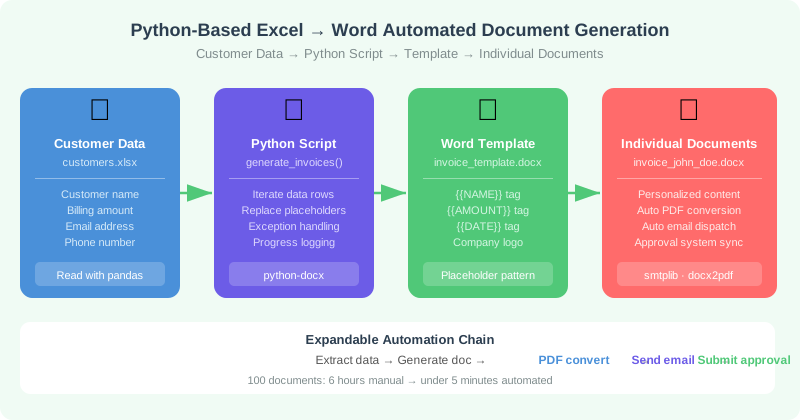
We’ll walk through an automation script that reads customer data from an Excel file, inserts it into specific locations in a Word template, and produces individual files ready for distribution.
1. What You Need #
- Data source:
customers.xlsx(with customer name, billing amount, email address) - Document template:
invoice_template.docx(containing placeholder tags like{{NAME}}and{{AMOUNT}}) - Required libraries:
pandas,python-docx
2. Python Automation Script #
|
|
This demonstrates the basics of Word document automation, but it’s just the beginning. In practice, you can extend this script to send generated documents directly to customers via email (e.g., smtplib), or connect it to internal approval system APIs to automate the entire flow — data extraction, document generation, approval submission, and customer dispatch — with zero human intervention.
Pro tip: To automatically convert generated
.docxfiles to PDF, try thepython-docx2pdflibrary or call LibreOffice command-line tools from your Python script. Automating PDF conversion ensures a polished, consistent final deliverable.

Not all documents start as structured Excel data, of course. Sometimes you need to pull information out of unstructured sources like scanned receipts or PDF contracts. That’s where OCR and AI come in.
Extracting Structured Data from Scanned Documents with OCR and AI #
Wouldn’t it be great if all your data were neatly organized in spreadsheets? The reality is a flood of unstructured inputs: paper receipts, scanned PDFs, image-based contracts, and more. Historically, OCR could only “read” characters — making it difficult to distinguish “company name” from “total amount” within a block of recognized text. But with the integration of LLM-based AI and OCR, it’s now possible to cleanly pull only the information you need from raw text and output it as structured data (like JSON).
The Data Extraction Pipeline #
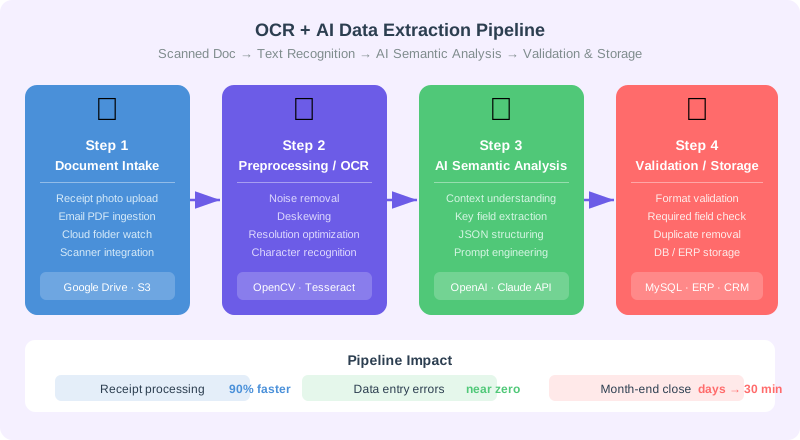
Here’s the step-by-step journey from scanned document to structured database entry — think of it as a digital assistant that reads and organizes complex documents on your behalf.
-
Document Collection (Input): Documents arrive — receipt photos from a smartphone, scanned PDF contracts received by email — and are routed into a designated cloud folder (Google Drive, S3, etc.) or internal system. This is the entry point for automation.
-
Preprocessing and OCR (Processing): Before hitting the OCR engine, collected images go through optimization steps: noise reduction and deskewing (e.g., using OpenCV). Then a powerful OCR solution like Tesseract or Google Cloud Vision API reads all the characters in the image into a text string. This step converts unstructured data into a format machines can work with.
-
AI Semantic Analysis and Structuring (AI Extraction): The raw text from OCR is still just a character dump — no meaning yet. This is where AI, especially LLMs, earns its keep. The text is sent to an LLM like the OpenAI API with a targeted prompt:
Example prompt: “The following is receipt content. Extract the company name, payment date, and total amount, and return them as JSON. For the amount, return only the numeric value.”
The LLM understands the context, pulls out exactly what you asked for, and returns a clean JSON object.
-
Validation and Storage (Output): AI-extracted data isn’t always perfect. A final validation pass checks reliability without human intervention — verifying date formats, confirming amounts are numeric, flagging missing required fields. Data that passes flows into your internal ERP, CRM, or a structured Excel database.
Building this kind of pipeline can cut the manual work of processing hundreds of monthly expense receipts by over 90%. The efficiency gains are dramatic.
Not comfortable with coding? The next section introduces no-code tools that let you build powerful automation workflows without writing a single line of code.
Building Approval and Reporting Workflows with No-Code Tools #
If your first reaction was “I don’t code…” — good news: you don’t have to. No-code and low-code tools like Zapier, Make (formerly Integromat), and Microsoft Power Automate let you build surprisingly capable document automation systems visually, connecting SaaS apps like LEGO blocks without touching a single line of complex code.
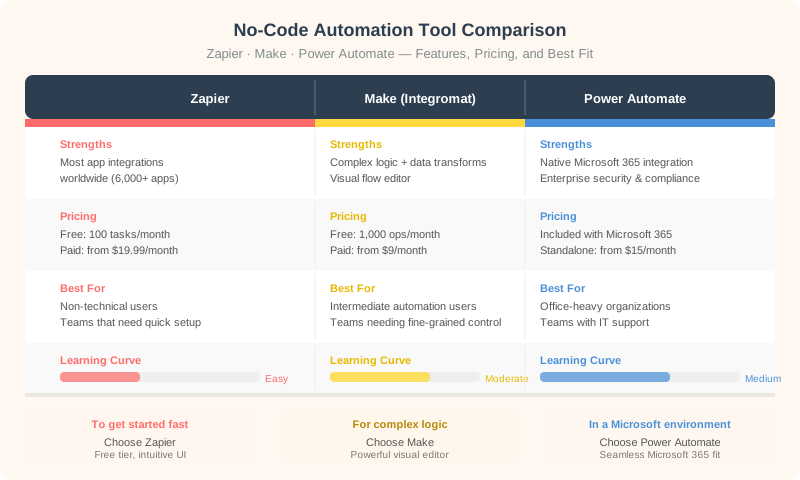
A quick comparison of the major players:
| Tool | Strengths | Pricing | Best For |
|---|---|---|---|
| Zapier | Widest app support (6,000+), intuitive UI | Free plan / Paid from $19.99/mo | Non-technical users, teams that need quick setup |
| Make (Integromat) | Complex logic, data transformation, visual flows | Free plan / Paid from $9/mo | Intermediate automation, teams needing fine-grained control |
| Power Automate | Native Microsoft 365 integration, enterprise security | Included with Microsoft 365 | Office-heavy organizations, teams with IT support |
Real-World Example: Freelancer Contract and Onboarding Automation #
Let’s see no-code tools in action through a freelancer contract and onboarding automation scenario. Handled manually, this process is a headache factory: missing information, contract errors, delayed onboarding. With Make, every step flows automatically.
-
Trigger: Freelancer submits their information A freelancer fills out a Google Form or Typeform with their name, contact details, and banking information. That submission triggers the entire automation workflow.
-
Action 1: Auto-generate the contract Make detects the form submission in real time, copies a standard contract template from Google Docs, and fills in the blanks with the submitted freelancer data. What used to take 20–30 minutes to draft now completes in seconds.
-
Action 2: Convert to PDF and request e-signature The completed Google Doc is automatically converted to PDF. Make then calls the DocuSign API (or a comparable e-signature service) to automatically email the freelancer a signature request link on the PDF contract. No more printing, signing, and scanning.
-
Action 3: Notify the team Once the contract is sent, Make fires off a Slack or Microsoft Teams notification: “Contract sent to new freelancer [Name].” The responsible team member sees it immediately and can begin preparing the next onboarding steps.
No-code automation like this doesn’t just save time — it gives business users the power to design and improve their own workflows without waiting on engineering. Your ideas become working automation the same day you have them.
Building a Real Automation Pipeline: A Step-by-Step Strategy #
Understanding the theory is one thing; actually building a pipeline is another. Here’s the approach I recommend to avoid common pitfalls and false starts.
Step 1: Define the problem and calculate ROI Get specific: “Three team members each spend 2 hours a month manually generating 200 invoices.” Compare the one-time cost of building the automation against the ongoing time savings to determine whether it’s worth the investment.
Step 2: Start with the simplest thing that could work Begin with the most repetitive, rule-driven task you have. A simple Python script often delivers more value than a complex AI pipeline. Build confidence with small wins before scaling up.
Step 3: Run a pilot test Before full deployment, test on a small sample (10–20 cases). This surfaces edge cases you didn’t anticipate and gives you a chance to fix them before they become incidents.
Step 4: Build monitoring in from the start Automation can and does break. Track processing volume, error rate, and processing time from day one — even a simple log file or spreadsheet dashboard beats flying blind.
Step 5: Expand incrementally Once your first automation is stable, select the next task and repeat. Six months in, you’ll likely have automated most of your team’s major repetitive workflows.
Precautions and Data Security #
Paperwork automation delivers real benefits, but it’s a double-edged sword. A poorly designed system can cause critical errors or serious security incidents. Safety and reliability have to come before raw throughput. Keep these three key precautions front of mind.
1. Handling Personally Identifiable Information (PII) #
When automating documents that contain sensitive PII — ID numbers, passport numbers, bank accounts, personal contact details — the principle of “err heavily on the side of caution” is non-negotiable. A single slip can trigger serious legal liability and lasting reputational damage.
- Mask data before sending to external APIs: If you need to analyze data via an external AI API (ChatGPT, Claude, etc.), mask sensitive fields beforehand using regex or similar techniques. Never let raw PII leave your system boundary.
- Manage credentials securely: API keys, database passwords, and other core credentials must never be hardcoded into source code. Use
.envfiles, environment variables, or a cloud Secret Manager (AWS Secrets Manager, Azure Key Vault) to store them encrypted and out of your codebase.
Key principle: Collect the minimum sensitive data necessary. Protect it with the maximum security practical.
2. Error Handling and Logging #
Automation systems are more fragile than they appear. Excel column names change unexpectedly. Scanned receipt images come in too blurry for OCR to read. These small issues can bring an entire pipeline to a halt.
- Write robust error handlers: Use
try-exceptblocks actively so unexpected errors don’t cause crashes. Design for graceful degradation — send an alert, substitute a default value, or skip and log rather than terminate. - Build a detailed logging system: When something goes wrong, you need to know exactly what, when, where, and why. Log file names, line numbers, and the data that caused the failure. This is what makes debugging fast rather than painful.
3. Human-in-the-Loop (HITL) #
Technology is powerful but not infallible. For critical decisions or legally binding documents, a Human-in-the-Loop (HITL) model is far wiser than full automation. Design the process so that human review is mandatory at key decision points.
- For example, even if AI scans a lengthy contract and flags risky clauses, the “approve this contract” button should be pressed by a human reviewer — not triggered automatically.
- This combines AI efficiency with human judgment, minimizing legal exposure and providing a safety net for the unpredictable. Automation supports the decision-maker; it doesn’t replace them.
With these precautions in place, your document automation goes beyond efficiency gains — it becomes the foundation of a more secure and reliable business process.
Conclusion #
We’ve covered a lot of ground: from Python scripting to OCR, AI, and no-code tools — a full range of strategies for dramatically streamlining and automating complex, time-consuming paperwork. The core insight isn’t just “finish faster.” Automation liberates you from the grind of repetitive tasks and creates a genuine opportunity to focus on work that’s more valuable, creative, and strategic.
Stop letting document piles drain your most productive hours. Pick one of your most frustrating repetitive tasks today and have the courage to build your first automation — whether that’s a small Python script or a quick no-code workflow. That small first step will change not just how you work, but the productivity culture of your entire team.
Which paperwork task will you automate first?