Using Apple Intelligence daily has fundamentally changed how I interact with my iPhone. My inbox now greets me with three-line summaries. Long documents prompt a gentle “Want me to clean this up?” The experience feels less like using a tool and more like having a capable assistant baked directly into the device. Unlike standalone AI apps that rely entirely on the cloud, Apple’s approach keeps most of the processing right on your phone. Here’s everything you need to know about Apple Intelligence in 2026.
What Is Apple Intelligence? #
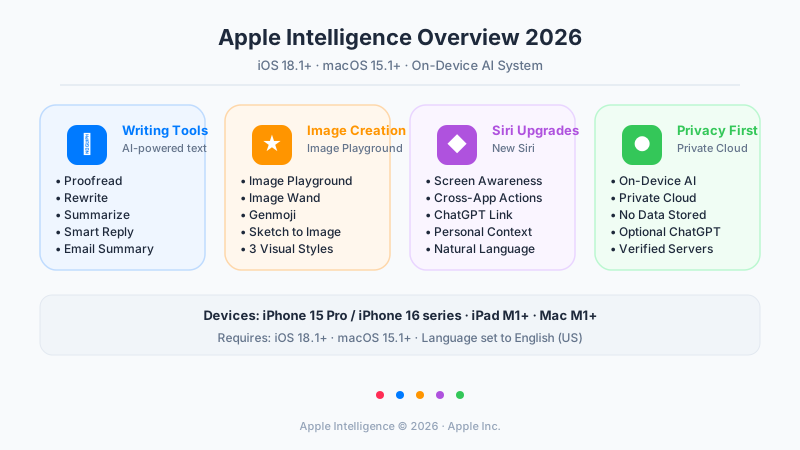
Apple Intelligence is Apple’s integrated AI system, introduced with iOS 18.1, iPadOS 18.1, and macOS Sequoia 15.1. The defining characteristic is its on-device-first architecture: wherever possible, AI processing happens locally on your device rather than being sent to remote servers.
The system covers three main areas. Writing Tools help you polish and refine text across virtually every app. Image features — Image Playground, Image Wand, and Genmoji — let you create custom visual content. An upgraded Siri ties everything together with deeper contextual understanding and cross-app intelligence.
Full English (US) support is available right now. Additional languages are rolling out progressively; if you’re a non-English speaker, switching your device language to English (US) is currently the most reliable way to access all features.
Supported Devices and How to Activate #
Compatible Devices #
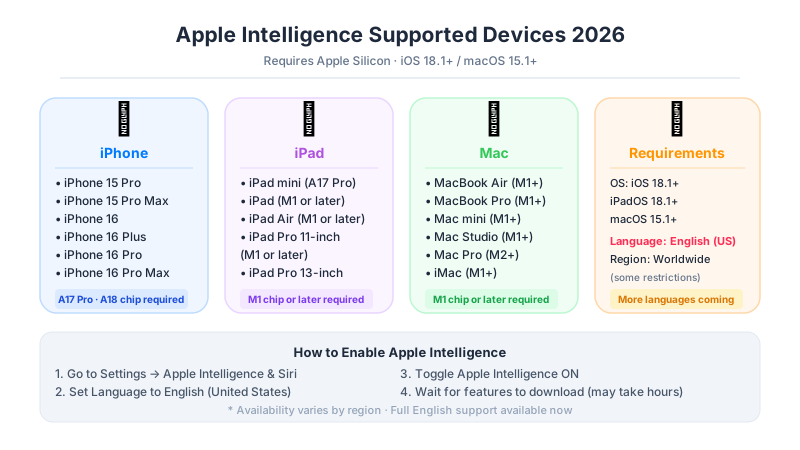
Apple Intelligence requires Apple Silicon. Here’s the breakdown:
- iPhone: iPhone 15 Pro and 15 Pro Max (A17 Pro chip), iPhone 16 / 16 Plus / 16 Pro / 16 Pro Max (A18 family)
- iPad: iPad mini with A17 Pro, and any iPad / iPad Air / iPad Pro with M1 chip or later
- Mac: MacBook Air, MacBook Pro, Mac mini, Mac Studio, iMac with M1 or later; Mac Pro with M2 or later
The standard iPhone 15 (non-Pro) and any device older than A17 Pro / M1 are not supported.
Activation Steps #
- Open Settings → Apple Intelligence & Siri.
- Set your device language to English (United States).
- Toggle Apple Intelligence on.
- Wait for the on-device models to download — this can take several hours.
- Features appear progressively as each model finishes downloading.
Writing Tools #
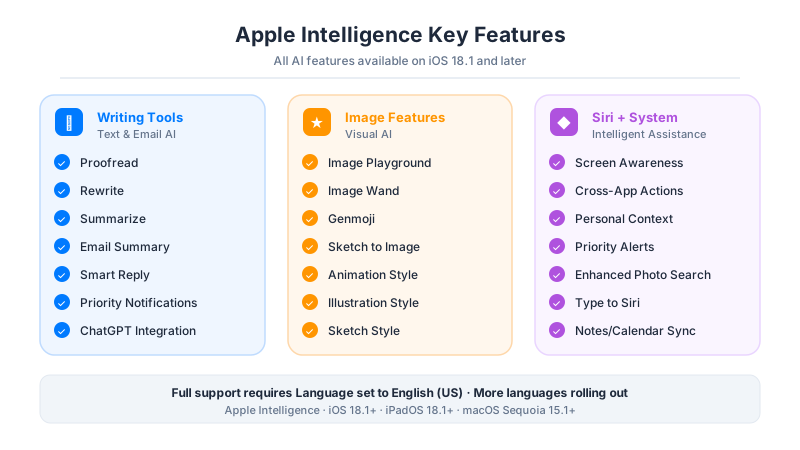
Writing Tools are the most immediately useful part of Apple Intelligence. They work system-wide across the text input field of nearly any app — Notes, Mail, Messages, Pages, and most third-party apps.
Proofread #
Apple Intelligence scans your text for grammatical errors, punctuation mistakes, and awkward phrasing — but with contextual awareness. Rather than underlining every deviation from standard rules, it focuses on clarity and meaning. Select any text, tap Writing Tools, and choose Proofread to see suggested changes highlighted in a diff view. You decide what to apply.
Rewrite #
Rewrite transforms your text into a different tone or register. Options typically include making text more professional, more conversational, or more concise. You can cycle through multiple versions and keep the one that fits best. This is particularly useful when you’ve written a rough draft and want to present it differently for different audiences.
Summarize #
Long text gets condensed into a few key sentences. The Mail app uses this heavily: before you even open a long email thread, a compact AI summary appears at the top. You can grasp who said what and what action is needed without reading the full chain.
Email Summary and Smart Reply #
Mail’s AI features go further than just summarizing. Smart Reply generates contextually appropriate response drafts based on the email you received. You get a few options, can edit them freely, and send. The feature feels unusually good at capturing the right tone for business correspondence.
Priority Notifications #
When your lock screen fills with notifications, Apple Intelligence ranks and summarizes them. Instead of a wall of alert banners, you get a brief digest: “Three friends confirmed for dinner. Your 2 PM meeting was moved to 3 PM.” The system learns over time which notifications you actually act on.
Siri Upgrades #
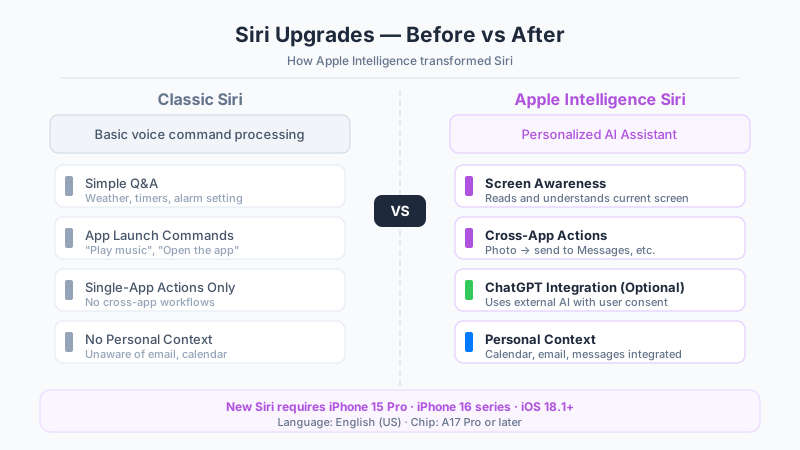
Classic Siri was fine for simple commands — timers, music playback, basic questions — but fell apart the moment requests got complex. Apple Intelligence Siri is a meaningful step forward.
Screen Awareness #
Siri can now read and understand what’s currently on your screen. If you’re looking at a text message with a restaurant name in it, you can say “Add this restaurant to my favorites” and Siri knows exactly what you mean without you having to specify anything. Context from the current screen is available to Siri at all times without you needing to copy-paste anything.
Cross-App Actions #
This is the feature that most expands Siri’s practical utility. Multi-step tasks that previously required opening several apps can now be expressed as a single natural language request. “Find my photos from the Tokyo trip last month and send the best three to Sarah” is a request Siri can now actually execute — navigating Photos, identifying the relevant images, and composing a message, all in sequence.
Personal Context Understanding #
Siri can draw on information from your Calendar, Mail, Messages, and Notes to give contextually relevant answers. Ask “Am I ready for tomorrow’s presentation?” and Siri checks your calendar for the event, looks for related emails, and gives you a meaningful status update. All of this happens on-device, so your personal data stays on your phone.
ChatGPT Integration (Optional) #
For requests that go beyond what Apple’s on-device models can handle — creative writing prompts, deep research questions, complex reasoning — Siri can hand off to ChatGPT. Every handoff requires an explicit confirmation prompt. You see exactly what will be shared before it’s sent. The integration can be disabled entirely in Settings → Apple Intelligence & Siri → ChatGPT.
Type to Siri #
Instead of speaking, you can type your request to Siri. Useful in quiet environments, for complex or technical requests you want to phrase precisely, or whenever you simply prefer not to speak aloud.
Image Features #
Image Playground #
Image Playground generates images from text descriptions directly on your device. It’s built into the Photos app, Messages, and accessible from other apps. Three visual styles are available:
- Animation: Bright, cartoon-like visuals with smooth shapes and vibrant color
- Illustration: A warmer, hand-drawn aesthetic reminiscent of editorial illustration
- Sketch: Pencil-line drawings in black and white
You can incorporate people by referencing contacts — the system uses their profile photos to approximate their appearance in the generated image. Generated images can be shared directly or sent in Messages.
Image Wand (iPad) #
Draw a rough sketch on your iPad with Apple Pencil and Image Wand turns it into a finished image. Working in the Notes app, you encircle your sketch and tap Image Wand. The AI interprets your drawing and generates a polished version. It’s especially useful for quickly visualizing ideas or creating diagrams that go beyond what you could draw by hand.
Genmoji #
Genmoji creates custom emoji characters from text descriptions. Type “exhausted developer staring at a screen” or “a cat triumphantly holding a trophy” and you get a personalized emoji sticker. These can be sent in Messages or used as reactions. The generated Genmoji appear in line with regular emoji in Messages.
Privacy Architecture #
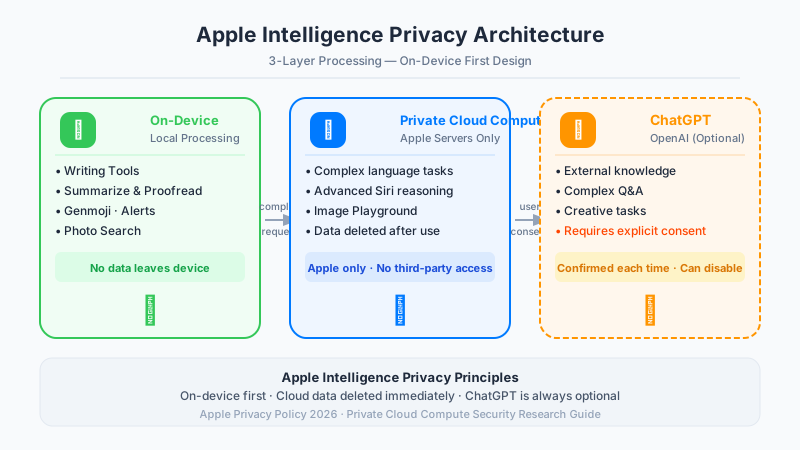
Apple’s approach to AI privacy is genuinely different from most competitors, and it’s worth understanding how the system is structured.
Layer 1: On-Device Processing #
The majority of Apple Intelligence features run entirely on your device. Writing Tools, notification summaries, photo search, basic Siri queries — none of this requires a network connection, and none of this data leaves your device. The on-device neural engine in Apple Silicon chips handles the computation locally.
Layer 2: Private Cloud Compute #
More complex tasks that exceed on-device capabilities are routed to Apple’s Private Cloud Compute infrastructure. This is Apple-operated hardware running Apple software, with no third-party access. Crucially, Apple has published the Private Cloud Compute software so independent security researchers can verify the privacy claims. Data processed in Private Cloud Compute is not retained after the request completes.
Layer 3: ChatGPT (Optional) #
A small category of requests — those requiring broad world knowledge or creative reasoning beyond Apple’s models — can be forwarded to ChatGPT. This only happens with your explicit approval, confirmed at the moment of each handoff. You can disable this pathway entirely. When ChatGPT is involved, OpenAI’s privacy policy applies to that data.
Three Practical Tips #
Tip 1: Redesign your email workflow Before opening your inbox, check the AI priority summary on your lock screen. Use Mail’s thread summaries to assess urgency without reading full messages. Use Smart Reply for straightforward responses and reserve your full attention for emails that genuinely require it. This workflow alone can reclaim meaningful time each day.
Tip 2: Combine Siri with Shortcuts The upgraded Siri pairs well with the Shortcuts app. Create a “Morning Briefing” shortcut that Siri runs with a single phrase: current weather, today’s calendar summary, and your commute time, all delivered in sequence. Siri’s improved context handling makes these multi-step automations more reliable than before.
Tip 3: Use Image Playground for personalized messages When sending birthday messages, congratulations, or any occasion that calls for something personal, take 30 seconds to generate a custom Image Playground illustration. A personalized generated image makes a message feel genuinely thoughtful in a way that stock GIFs do not.
Limitations and Caveats #
Language support: Full Apple Intelligence support currently requires English (US) as your device language. If you primarily use another language, you’ll need to switch languages to access Writing Tools and the improved Siri features. Apple is adding more languages over time, but the rollout is gradual.
ChatGPT privacy: When the ChatGPT integration is used, data is processed under OpenAI’s privacy policy, not Apple’s. For sensitive information, decline the ChatGPT handoff or disable it in Settings.
Device requirements are strict: There is no software update path to Apple Intelligence on older devices. The A17 Pro / M1 cutoff is hardware-enforced by the neural engine capabilities required.
Battery and heat: Initial model downloads and periods of heavy AI use can increase battery drain and cause the device to run warmer than usual. This is most noticeable during the first day or two after activation.
Regional variations: A small number of features had regional availability restrictions at initial launch. Most restrictions have since been lifted, but it’s worth checking Apple’s official feature availability page for your country.
Conclusion #
Apple Intelligence represents a genuine shift in how AI integrates into a consumer device — not as an add-on app, but as a system-level capability built around a coherent privacy philosophy. Writing Tools and email summaries deliver immediate, practical value. The upgraded Siri is a meaningful step toward the assistant Apple has been promising for years, even if there’s still room to grow.
If you have a compatible device, the case for trying Apple Intelligence is simple: set your language to English (US), turn it on, and use it for a week. The features that feel slightly inconvenient at first quickly become hard to give up. And for anyone who has been hesitant about AI tools due to privacy concerns, Apple’s on-device-first approach offers a credible alternative to cloud-dependent services.
The platform will keep improving. Additional languages, more capable models, and deeper app integrations are coming. The foundation Apple has built — both technically and in terms of trust — gives Apple Intelligence a strong base to build from.